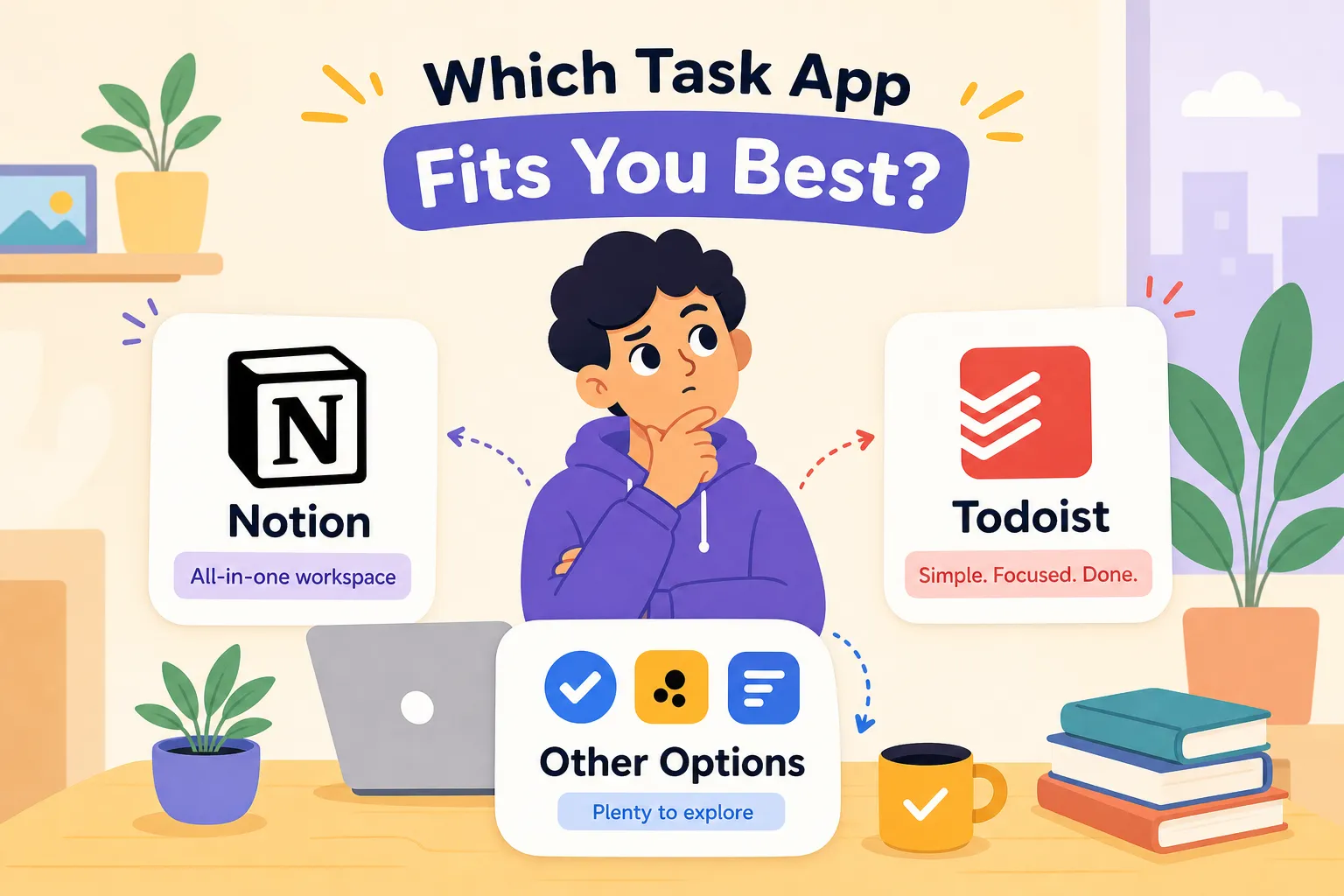
If you’re weighing Notion vs Todoist vs other tools for staying organized, this guide will save you another wasted download. You’ve probably already been through this cycle: you grab three apps, watch the setup videos, explore the dashboards, and make a fresh start at least twice. And yet, somehow, your actual to-do list is still a folded sticky note next to your coffee mug. That doesn’t mean you’re bad at productivity. It means you haven’t found the tool that fits the way your brain actually works.
The Notion vs Todoist comparison trips people up not because these apps are bad, but because they’re built for completely different kinds of people. At Tech Brewed, it’s one of the most common questions the community asks every week: “I’ve heard of Notion and Todoist, but which one should I actually use?” The answer isn’t about features. It’s about fit.
Instead of walking you through a spec sheet showdown, this guide matches each tool to a specific type of organizer. By the end, you’ll know exactly where to start, and you won’t need to download anything else to figure it out.
What kind of organizer are you?
Most comparison articles treat this like a fight between two products. The real question is simpler: how does your brain like to work? The tool that fits your thinking style will feel effortless. The one that doesn’t will quietly frustrate you for months before you realize why.
The task manager vs the workspace builder
There are two types of organizers. The first just needs to capture a task, assign a date, and check it off without friction. The second wants one place that holds their notes, projects, client info, and tasks all combined together. If you’re the first type, you need a focused task manager. If you’re the second, you need a workspace. Picking the wrong category is the whole problem.
Why the wrong tool quietly drains your productivity
Here’s the sneaky part: the wrong tool doesn’t fail loudly. It just creates low-grade friction every single day. People who reach for Notion when they really just need a to-do list end up spending 40 minutes tweaking a database instead of doing the actual work. The system becomes the job. That’s not a Notion problem; it’s a mismatch problem.
Notion vs Todoist vs Other Tools for Staying Organized: A Quick Look at the Field
What Notion does well
If you live in documents, Notion is remarkable. You can build custom database views as kanban boards, calendars, timelines, or galleries, and link your notes directly to your tasks so context lives right next to the action item. In 2026, Notion’s AI features let you pull in Google Calendar events and query your own workspace, making it a powerful home base for knowledge workers who want everything in one place. Freelancers and solopreneurs especially will find that Notion templates handle client databases, project tracking, and doc management right out of the box, particularly once you strip them down to what you actually need.
Where Notion slows you down
The performance complaints about Notion are real and consistent. Large databases with thousands of records start to feel sluggish, with page loads stretching to three to five seconds in heavy workspaces. Mobile performance is weaker than desktop, and reminders depend on database date properties rather than a reliable native notification system. Recurring tasks require manual workarounds instead of the simple natural-language setup you’ll find elsewhere. If you need a recurring task to fire reliably every Monday without babysitting a formula, Notion is going to test one’s patience.
Who Notion is actually built for
Notion fits freelancers, solopreneurs, and knowledge workers who want everything connected: client notes, project documentation, meeting records, and task monitoring all in one place. It’s not the right pick if your main goal is fast daily task capture. If you catch yourself saying “I just want to write down what I need to do today,” Notion is more tool than you need.

Todoist: task capture done right
Todoist is built on the opposite philosophy. No custom databases, no linked wikis, no blank warehouse to fill. It does one thing with outstanding precision: capture tasks and help you complete them. If Notion is a full kitchen with every appliance you can imagine, Todoist is a sharp chef’s knife. Less impressive to show people, but far more useful when you actually need to cook dinner.
What Todoist gets right
The Quick Add feature with natural-language input is fast. You type “call Sarah every first Monday at 10am” and Todoist sets the recurring reminder without any extra steps. Recurring tasks work exactly as advertised, mobile notifications are reliable, and project organization is clean without requiring you to design a system from scratch. Subtasks are a built-in feature, not a database workaround. For remote workers managing several client deadlines, that reliability matters more than any amount of visual flexibility.
Where Todoist hits its limits
The free plan caps you at five personal projects, which most people bump into faster than they expect. There’s no native note-taking or document layer, so if you want your tasks connected to longer project background, you’ll need a second tool. Project views are list-oriented rather than visual, Notion-style kanban or schedule options aren’t available at the basic level. Todoist is a task manager, not a workspace, and it doesn’t pretend otherwise.
Who Todoist is actually built for
Remote workers with high daily task volume and people managing multiple client projects with real deadlines will get the most out of Todoist. That goes for anyone who wants a recurring reminder to just fire without building a system around it. If your workday involves clearing a long list of actions across several projects, Todoist keeps friction low so you can focus on execution rather than system maintenance.

Other tools worth knowing about
The right tool for you might not be either of those two, and that’s completely fine. Here are honest recommendations for three distinct use cases, the same advice you’d give a friend instead of a roundup that lists every option imaginable.
For visual planners and small teams: Trello and Asana
Trello’s kanban boards are fun and fast to set up for simple visual workflows. You can see exactly where a project stands in about three seconds, and the learning curve is almost flat. Asana steps up when you need team assignments, shared timelines, and visibility across multiple people working on the same project. Neither tool is as flexible as Notion, but both carry significantly less setup burden, which makes them easier for small teams to actually adopt and stick with.
For Apple users who want a serious GTD system: Things 3 and OmniFocus
Things 3 is the most polished individual task app on Apple devices, sitting comfortably between Todoist’s simplicity and Notion’s complexity. Its structure maps cleanly to Getting Things Done workflows (Areas, Projects, Today, Someday) without requiring you to build such structure yourself. OmniFocus is for power users who want deep GTD logic with complex filtering and review cycles baked in. Both are Apple-only, and Things 3 has the added appeal of a one-time purchase price rather than a monthly subscription.
For teams who need everything in one place: ClickUp
ClickUp combines workspace flexibility with team task management in a single platform. For teams that need document storage and task monitoring together, it’s a capable option. The free plan includes unlimited tasks and unlimited users, which is more generous than either Notion or Todoist at the free tier. The tradeoff is a real learning curve: ClickUp has a lot of surface area, and it rewards teams willing to invest time in the setup.
How the pricing actually stacks up
Here’s what the numbers look like before you commit to anything.
Free plans: what you actually get for $0
Notion’s free tier works well for solo users. You get unlimited pages and blocks with no project count limit, though version history is limited to seven days and file uploads cap at 5 MB. Todoist’s free plan restricts you to five personal projects, which feels small fast if you’re juggling more than a handful of areas. Both free plans are functional enough to get started, but both will push you toward paid features within a few months of real use.
Paid plans: where your money goes
Todoist Pro runs about $5 per month billed annually, which bumps your project limit from 5 to 300 and unlocks reminders, calendar view, and full activity history. That’s cheaper than most streaming subscriptions and easy to justify. Notion Plus sits at $10 per user per month billed annually, which buys you unlimited file uploads, 30 days of version history, and more generous sharing. If you’re a solopreneur on a budget, Todoist Pro is the easier upgrade to justify. If you use Notion as your full workspace, the Plus plan is worth the step up.
Three setups to get you started today
Theory only goes so far, so here are three specific configurations for three types of users, stop debating and start building.

The solopreneur setup
Use Notion as your home base. Build one workspace with a client database, a project tracker linked to those clients, and a simple task view filtered to this week. Don’t build more than you need on day one. Start with a free Notion freelancer template, strip out anything that feels superfluous, and customize from there. The goal is a system you’ll actually use, not the most elegant system you can design.
The remote worker setup
Use Todoist for daily task capture, especially if you’re managing multiple projects with real deadlines among different clients or teams. Pair it with Google Calendar for time-blocking so each task gets a slot in your actual schedule. Upgrade to Pro when you hit the five-project limit, that’s the clearest signal that the tool is working for you.
The visual planner setup
Use Trello for project-level boards and Todoist for your daily tasks. This hybrid keeps the big picture separate from the daily execution list, which cuts the noise inside both tools. Your Trello board shows in which each project stands; your Todoist inbox shows what you’re doing today. If you want ongoing guidance on which tools are worth your time as they evolve, the Tech Brewed weekly Friday roundup covers exactly this kind of practical comparison without the filler. It’s a free newsletter written for people who want one trusted source instead of twelve tabs open at once.
Pick one and give it 30 days
The right productivity app isn’t the most popular one or the one with the longest feature list. It’s the one that fits how you actually work. When you’re sorting through Notion vs Todoist vs other tools for staying organized, the organizer type framework in this guide cuts straight to what matters:
- Notion for workspace builders and solopreneurs who want everything connected in one place.
- Todoist for task-heavy remote workers who need speed and reliability above all else.
- Things 3 or Trello when neither of those feels right for your workflow.
The most common mistake isn’t picking the wrong app. It’s switching apps before giving the first one a real chance. Pick one based on your organizer type, run with it for 30 days, and judge it on how well it reduces friction rather than how impressive it looks in a demo. When the next great tool hits the market and everyone starts debating whether to switch again, Tech Brewed is where you’ll get a straight answer, without the hype.
Frequently Asked Questions

Is Notion better than Todoist?
Neither is objectively better, they serve different needs. Notion is better for workspace builders who want notes, docs, and tasks in one place. Todoist is better for people who need fast, reliable task capture and don’t want to build a system from scratch. The Notion vs Todoist comparison really comes down to whether you’re a workspace builder or a task manager.
Can I use Notion and Todoist together?
Yes, and some people do. A common setup is using Notion for project documentation and client notes while using Todoist for daily task capture. The tradeoff is managing two tools instead of one, so it works best when each has a clearly defined role in your workflow.
What’s the best free task management app?
For solo users, Notion’s free tier offers the most flexibility with unlimited pages and no project cap. For pure task management, Todoist’s free plan covers the basics well up to five projects. ClickUp’s free plan is the most generous for teams, with unlimited tasks and users included.
What’s a good Todoist alternative for Apple users?
Things 3 is the top pick for Apple users who want a polished, GTD-friendly experience without a monthly subscription. It sits between Todoist’s simplicity and Notion’s complexity and works exclusively on Apple devices.
How long should I try a new productivity app before switching?
Give it at least 30 days of real use before judging. Most tools feel awkward in the first week while you’re building the habit. The right app reduces friction over time, if it’s still fighting you after a month of genuine effort, that’s a reliable signal to reexamine.