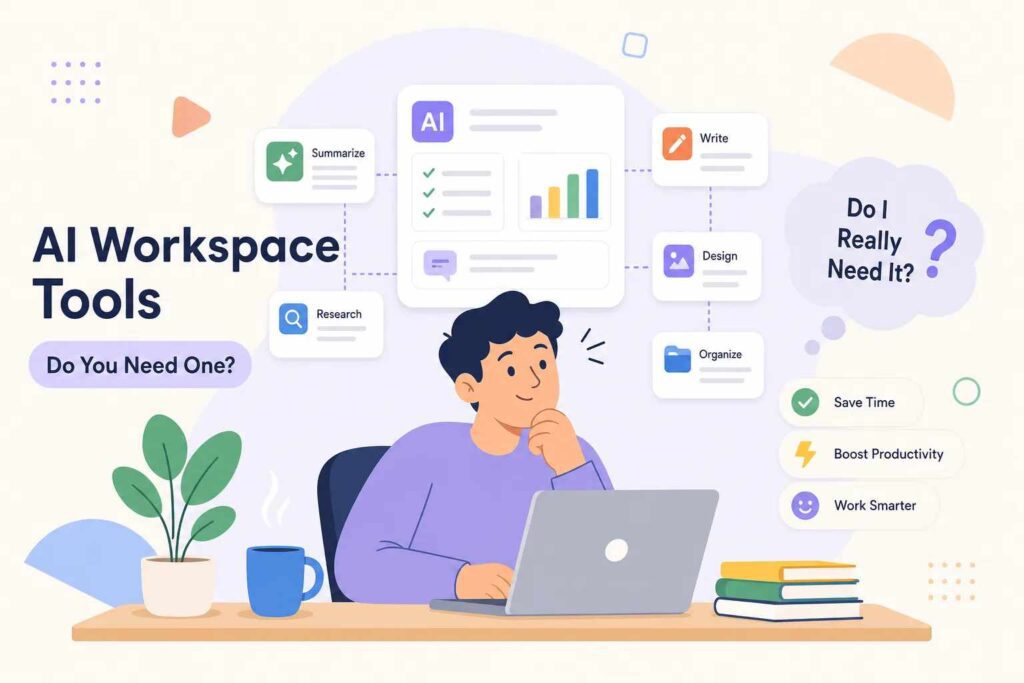
If someone has mentioned “AI workspace tools” to you recently and you nodded along while quietly thinking “what does that even mean,” you are not alone. Questions exactly like this land in Greg’s inbox at Tech Brewed every single week. The terminology is genuinely confusing: agents, copilots, knowledge bases, AI-powered workspaces. It sounds like a glossy brochure for a product nobody fully understands yet.
Here’s the honest situation: the category is real, the tools are genuinely useful, and the noise around them makes it way harder than it needs to be to figure out if you actually need one. By the end of this article, you’ll know what these tools actually do, which ones are worth looking at in 2026, and whether right now is the right time for you to try one. No jargon, no judgment for not knowing this already.
What AI workspace tools actually do
The fastest way to understand this category is to compare it to something you probably already use. A standard AI chatbot, like a free browser tab with a chat window, answers questions. You type something in, it responds, and then it forgets everything the moment you close the tab. Every conversation starts from zero. That’s useful, but it has a ceiling.
An AI-powered workspace tool is different because it lives inside your actual work. Think of a smart assistant that, once you grant access and configure the right connectors, can index your shared drive files, project tasks, and meeting notes, then use that context to surface relevant information when you need it. Instead of walking in every morning knowing nothing and making you re-explain everything, it draws on the context you’ve already connected. That’s the gap these tools close. (It’s worth noting: the assistant only sees what you give it access to, and the quality of that context depends on how you’ve set things up.)
The word “workspace” is doing a lot of work in that phrase. It means the AI is connected to where your real work lives: your notes app, your project tracker, your emails, your team documents. Instead of you copying and pasting content into a chat window and hoping for the best, the tool pulls context from your actual workspace and uses it to help you write, summarize, and plan. Ask it to summarize last week’s project notes and it already knows where those notes are, because you pointed it there. That’s the idea.
The word “workspace” is doing a lot of work in that phrase. It means the AI is connected to where your real work lives: your notes app, your project tracker, your emails, your team documents. Instead of you copying and pasting content into a chat window and hoping for the best, the tool pulls context from your actual workspace and uses it to help you write, summarize, and plan. Ask it to summarize last week’s project notes and it already knows where those notes are, because you pointed it there. That’s the idea.

The most popular AI workspace apps people are using right now
There are dozens of these tools out there. The four below keep coming up for everyday users, each paired with a short take on what makes it distinct, plus a note on two flexible alternatives worth knowing about.
Notion AI: the smart notebook
Notion is already one of the most popular note-taking and project-organization apps around. Notion AI layers on top of it so you can ask questions about your own notes, auto-generate summaries of meeting pages, and turn rough bullet points into polished documents. It’s best described as a notebook that reads itself back to you and helps you finish your sentences. If your work lives in documents, pages, and knowledge bases, this one fits like a glove.
ClickUp Brain: the project manager that writes its own reports
ClickUp is a task and project management tool, and ClickUp Brain adds AI that can summarize project updates, create tasks from meeting notes automatically, and answer questions about what’s happening across your projects. According to ClickUp’s published user research, teams using ClickUp Brain report a 40% reduction in time spent preparing status reports, a meaningful number for anyone who’s ever spent a Friday afternoon writing updates nobody fully reads. (Note: this figure comes from ClickUp’s own case study data.) Think of it as your project tracker finally explaining itself without you having to dig through every single task.
Microsoft Copilot: for people already living in Office
If your workday runs on Word, Excel, Outlook, and Teams, Microsoft Copilot is already baked into that environment. It drafts emails, summarizes meetings, builds slide outlines, and analyzes spreadsheets through plain conversation. Microsoft’s internal Copilot productivity research found that users complete common tasks about 29% faster, saving an average of 14 minutes per day. Meeting summaries specifically were completed nearly 3.8 times faster. (These are vendor-reported metrics from Microsoft’s own studies.) For anyone deep in the Microsoft ecosystem, this one requires no new apps to adopt, just smarter versions of what’s already open.
Taskade and ChatGPT: the flexible options
Taskade is built for multi-agent, collaborative work: AI agents can read project context, update tasks, and trigger other agents as part of a larger workflow. That makes it a strong pick for teams that want automation baked into their project structure. ChatGPT’s Business and Enterprise plans, on the other hand, shine as all-rounders for writing, research, and analysis, especially when connected to your files. Both fall into the “bring your own structure” category. They’re more flexible than the purpose-built options above, with a slightly higher learning curve, but genuinely powerful for solo workers and small teams who want to set things up their own way.
Who each AI workspace tool is actually built for
Knowing the tools is one thing. Knowing which one fits your situation is the more useful question. Here’s the honest breakdown without any comparison charts.
If you’re a solo worker, freelancer, or solopreneur, Notion AI or ChatGPT tend to fit best. They’re flexible, affordable, and don’t require a whole team to be worth using. The question to ask yourself: do you live in documents and notes, or do you need a thinking partner more than an organizer? Notion AI for the former, ChatGPT for the latter. Notion offers a free workspace tier, and the standard ChatGPT consumer tier is also free, both let you do real work before spending a dollar. (Note: ChatGPT Business is a paid plan; if you want to test before committing, start with the free consumer version.)
If you’re on a small team or remote crew, ClickUp Brain and Taskade shine because they handle shared projects, assign tasks, and keep everyone aligned without extra meetings. Microsoft Copilot makes sense if the team is already on Microsoft 365. The honest tip here: don’t switch your whole team to a new platform just for the AI features. Find the AI workspace tool that fits where your team already works, then adopt it. Switching costs are real and often underestimated.
What these tools cost and what you can actually get for free
Free tiers are genuinely more useful in this category than you might expect, largely because even limited access lets you connect real files and run actual workflows, not just click through a sandbox. Notion has a free workspace tier with limited AI access. ClickUp has a genuinely functional free plan. ChatGPT’s free consumer version gives you a real taste of the paid experience. These aren’t just demos you click through once. You can do real work with them. The practical advice: spend two full working weeks on the free tier before paying for anything. Two weeks of actual work tells you far more than a demo.
When it comes to paid plans, most team options land in roughly the $10 to $30 per user per month range, based on current published pricing across the major tools. Microsoft Copilot is listed at $21 per user per month as an add-on for small teams (promotional pricing runs through the end of 2026), though that requires an existing Microsoft 365 subscription. Google Gemini for Workspace runs roughly $7 to $22 per user per month depending on the plan tier. ClickUp’s paid tiers start around $7 per user per month, with Brain sometimes sold as a separate add-on.
Here’s a simple way to think about value: if a tool saves you 30 minutes a day and your time is worth $30 an hour, that’s roughly $300 in recovered time per month, well above the cost of any plan listed above. Treat that as an illustrative benchmark, not a guarantee. Google’s published Gemini for Workspace data cites an average of 105 minutes saved per user per week among enterprise customers. Microsoft’s internal Copilot research puts the average closer to 14 minutes per day. The range is wide because results depend almost entirely on how you use the tool and whether it actually matches your workflow.
Enterprise pricing gets complicated fast, with minimum seat counts and custom add-ons that are typically quote-based. For individuals and small teams, the published tiers are usually straightforward.

So do you actually need one right now?
Here are the signs you’d genuinely benefit from an AI productivity tool today. You spend more than an hour a week writing the same types of documents, emails, or project updates from scratch. You’re constantly searching through your own notes or files to find something you know you saved. Your work involves a lot of summarizing and drafting, exactly the kind of output an AI-powered workspace handles well.
Here are the signs you can probably wait. Your current tools, even basic ones like Google Docs and a simple to-do app, still feel manageable and not particularly painful. You haven’t clearly identified which specific bottleneck in your workday would actually improve with AI help. Both are completely reasonable places to be. These tools are evolving fast, and if you’re not sure yet, waiting isn’t falling behind. It’s just being thoughtful.
This is exactly why the Friday Tech Roundup newsletter at Tech Brewed covers these tools on a rolling basis. Rather than tracking every update, pricing change, and new competitor yourself, the useful stuff lands in your inbox every Friday, written in plain English for people who want the signal without the noise.
How to try one without overthinking it
The most common mistake people make with AI workspace tools is spending more time researching them than actually using them. Here’s a simple three-step test run that removes the overthinking.
- Pick the one tool that most closely matches where your work already lives. Notes and documents point toward Notion AI. Tasks and projects point toward ClickUp Brain. A Microsoft-heavy setup points toward Copilot. Start there, not with the tool that got the most press.
- Use the free tier for two real workweeks. Do actual work with it, not just the onboarding demo. Write a real document, summarize a real meeting, search for something you actually need. Fake tasks produce fake results.
- Track one specific thing. Did it save you time on that task or not? That single answer is all you need to decide whether to keep going or move on.
The bottom line on AI workspace tools
These tools aren’t magic. The right one for your workflow genuinely does save time and reduce the mental load of repetitive work, but “the right one” is doing a lot of work in that sentence. A tool that doesn’t match your environment won’t help you, no matter how impressive the feature list looks.
The simplest decision path: find where your work already lives, match an AI workspace tool to that environment, and test it free before paying for anything. You don’t need to figure out every tool at once. Start with one, use it for real work, and see how it fits. That’s it.
The AI workspace tool market keeps shifting, new features, pricing changes, and fresh competitors show up every few months. Bookmark this, pass it to a teammate who keeps asking about this stuff, and grab the Friday Tech Roundup at Tech Brewed if you want the ongoing updates handled for you.